

What you’ll need
NetSuite administrator access, to enable features, create an integration record, set up a role, and upload the certificate.Enable the required features
Go to Setup → Company → Enable Features → SuiteCloud. Enable Client SuiteScript, Server SuiteScript, REST Web Services, and OAuth 2.0, accept the SuiteCloud terms, then save.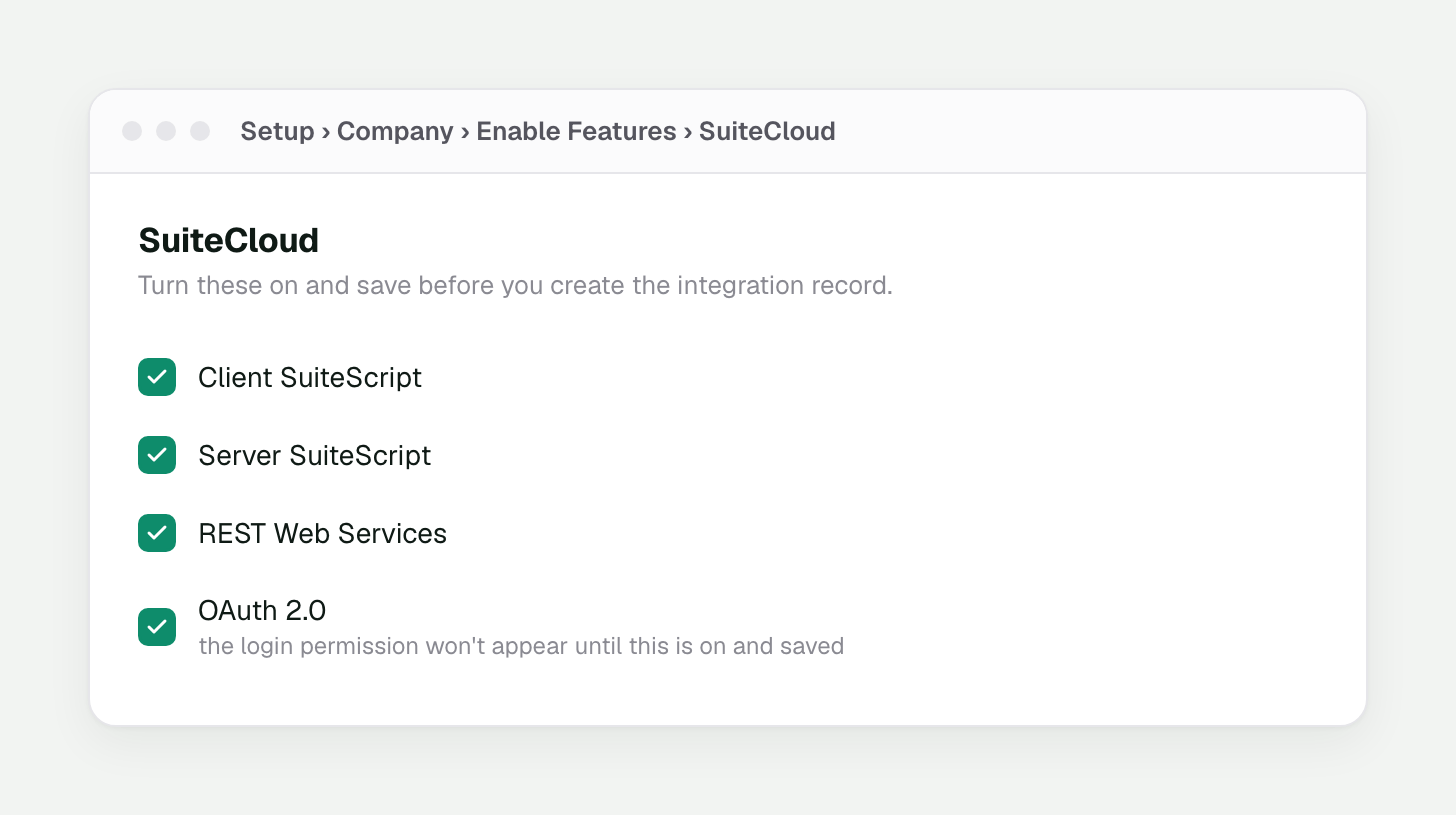
Enable Features → SuiteCloud. All four must be checked before you save.
Create the integration record
Go to Setup → Integration → Manage Integrations → New. Name it (for example “Elastly”), set State to Enabled, then check the following:- Client Credentials (Machine to Machine) Grant: required for M2M
- REST Web Services: required for SuiteTalk REST
- Leave Authorization Code Grant unchecked
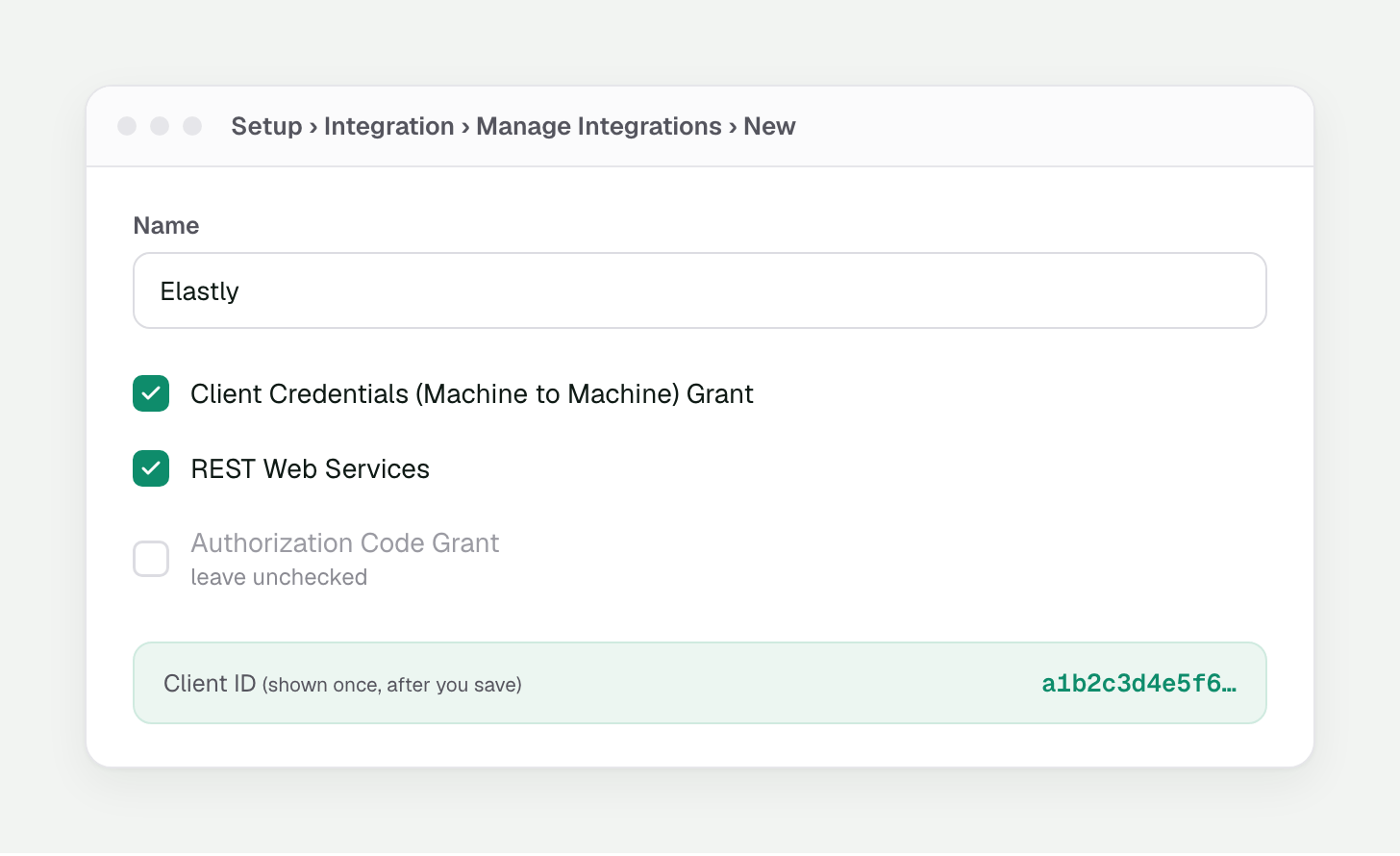
The integration record. Client ID appears once, right after you save.
Create a role for the integration
A role in NetSuite is a named bundle of permissions you attach to a user, and it decides what that login is allowed to read. Elastly logs in as a user, and that user’s role determines what Elastly can pull. Create a new, dedicated role for this. Don’t reuse Administrator or another built-in role. Built-in roles are locked, which is also why the OAuth permission won’t appear when you try to add it to them.Create the role
Elastly Integration.Add the Setup permissions
Add the Lists permissions
Add the Transactions permissions
Save and assign the role to a user
Elastly Integration role. Elastly signs in as this user, so if the role isn’t attached here the
token request fails. You’ll select this same user and role in the certificate step below.OneWorld accounts: grant the subsidiaries
OneWorld accounts: grant the subsidiaries
If you don't see "Estimate" in the list
If you don't see "Estimate" in the list
Turning on price write-back later
Turning on price write-back later
Generate the certificate in Elastly
In Elastly, open Integrations → Connect → Oracle NetSuite and click Generate & Download. Elastly creates the key pair and downloads a public certificate file,elastly-netsuite.pem. This is
a public X.509 certificate (RSA-3072), never a .p12. A .p12 would contain the private key, which
always stays inside Elastly.
Upload the certificate in NetSuite
Go to Setup → Integration → Manage Authentication → OAuth 2.0 Client Credentials (M2M) Setup and click Create New. (The administrator doing this needs the OAuth 2.0 Authorized Applications Management permission; a full Administrator role already has it.) Fill in:- Entity: the user the integration runs as
- Role: the role you configured above
- Application: the integration record (“Elastly”)
- Certificate: upload
elastly-netsuite.pem
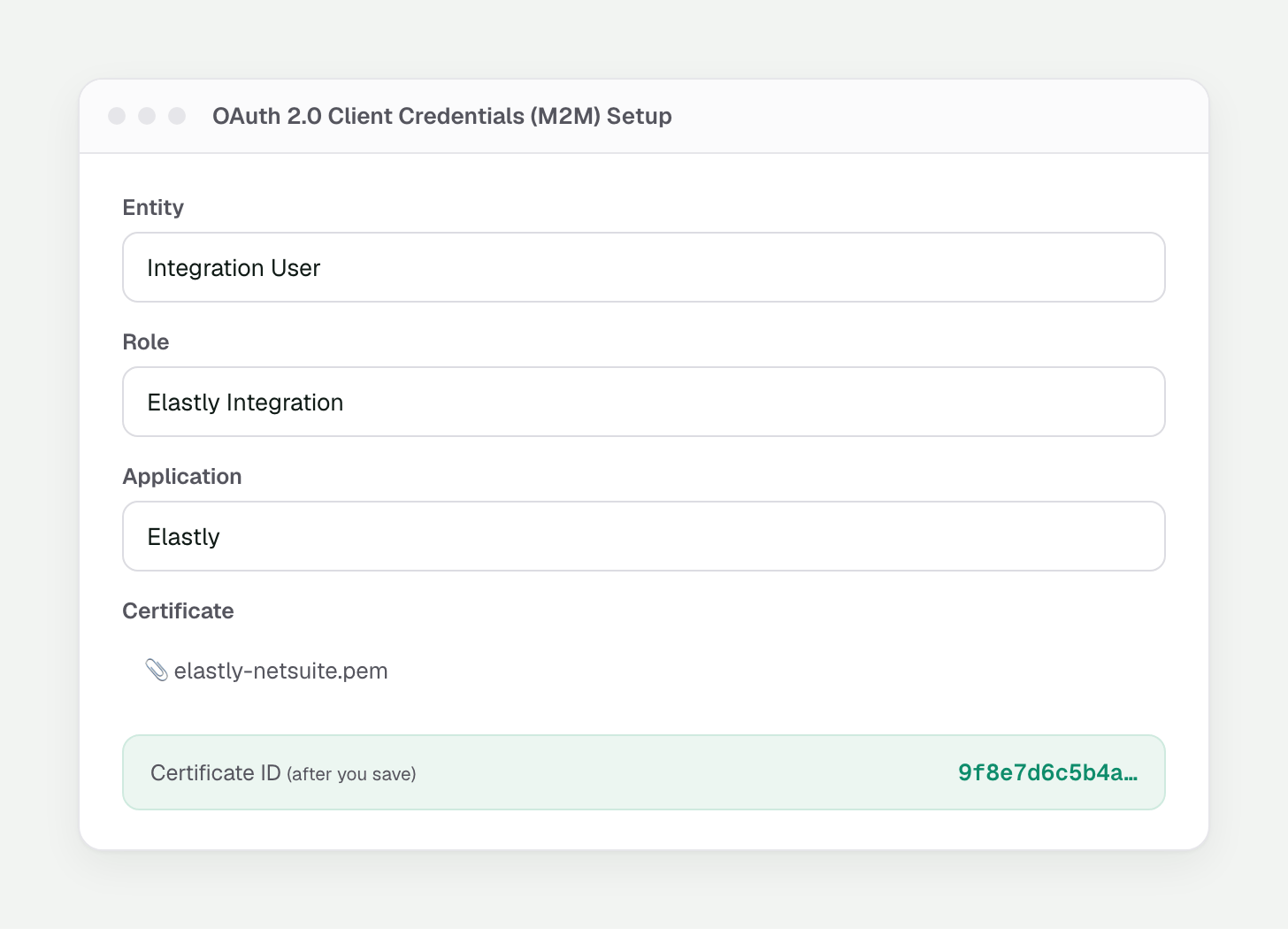
M2M setup: entity, role, application, and the public certificate. Certificate ID appears after saving.
Sandbox accounts are isolated
Sandbox accounts are isolated
Renewing the certificate (every two years)
Renewing the certificate (every two years)
Find your Account ID
Your Account ID is under Setup → Company → Company Information (also the subdomain prefix of your NetSuite URL). Production looks like1234567; sandbox looks like 1234567_SB1.
Finish in Elastly
Back in the Elastly connect dialog, enter your Account ID, Client ID, and Certificate ID, then click Connect to NetSuite. There’s no redirect or authorize step: Elastly requests an access token to verify the setup and starts your first sync.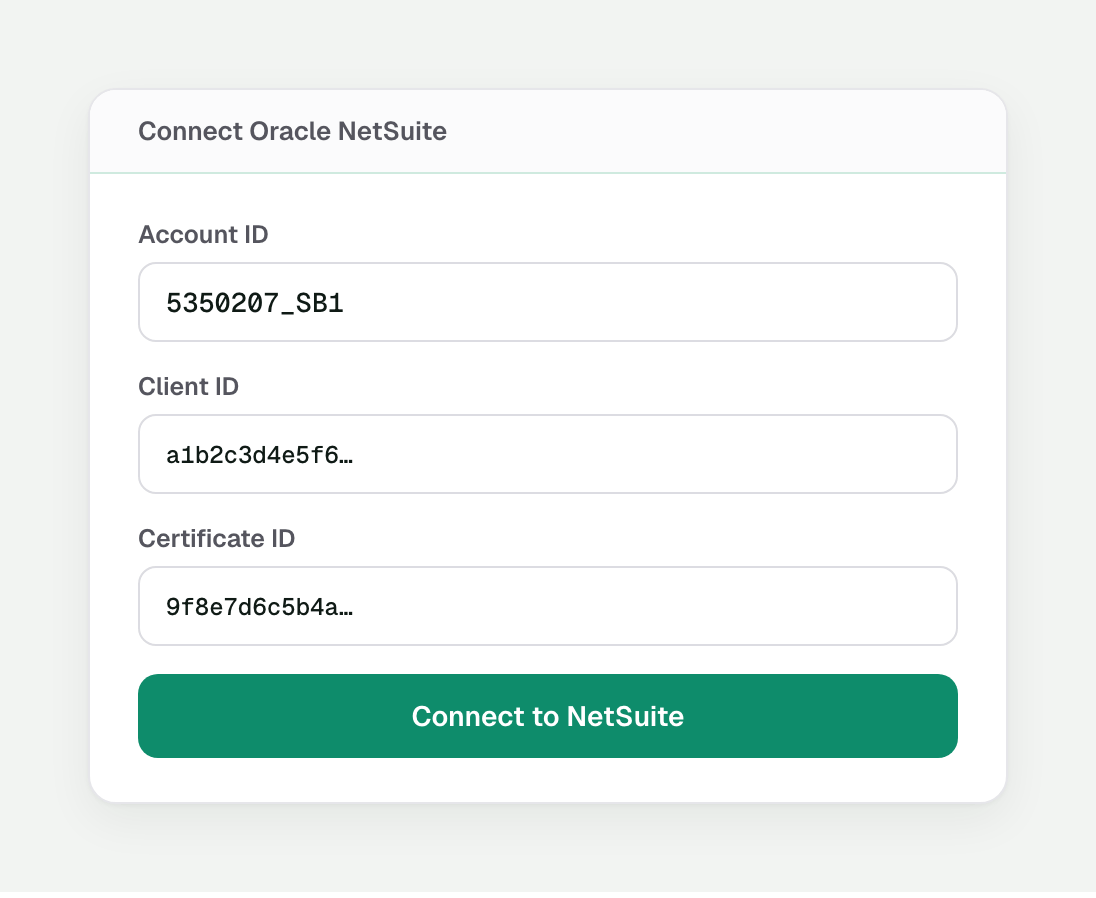
The three values go into Elastly's connect dialog. Click Connect and the first sync starts.
See Elastly’s price live inside NetSuite
Everything above sets up the read-only sync that feeds Elastly. The integration can also run the other way: a small Client Script inside NetSuite asks Elastly for the recommended price the moment a line is added to an Estimate or Sales Order, and shows it on the line as an advisory column (the Elastly Rate and its reason) right next to the native rate. Your reps keep working entirely in NetSuite and see Elastly’s number against their own. Elastly never overwrites the rate. The rep decides. This is optional, and it reuses everything the sync already taught Elastly: a line seen live in NetSuite carries the same explainable price the Elastly dashboard would show. Set it up once the first sync has finished. It fails open by design: if Elastly is ever slow or unreachable, the advisory columns simply stay empty and quoting is never blocked.Create an Elastly API key
The script authenticates to Elastly with a secret API key. In Elastly, go to Settings → API keys and press Create API key, give it a recognizable name (for exampleNetSuite production), and
copy the key when it’s shown, since it appears only once.
Add the Elastly line fields
Elastly shows its recommendation on the line through four custom line fields. Create all four now, before the script, so it has somewhere to write. NetSuite has no way to import a custom field from a file through the UI, so you create them yourself.Open Transaction Line Fields
Set the label, type, and ID
_elastly_rate). NetSuite adds the prefix
custcol for you, with no underscore of its own, so it saves as custcol_elastly_rate. Drop the
leading underscore and you get custcolelastly_rate, which the script can’t read and nothing warns
you about.Set Applies To
Set the display type
Save, then repeat for all four
Upload the script
Go to Customization → Scripting → Scripts → New and upload theelastly_estimate_pricing_cs.js
file Elastly provides.
On the script record itself (not the deployment yet), confirm these fields. Get this wrong and the
script installs cleanly but silently never runs, with nothing in any log to explain why:
Add the two script parameters
Still on the script record, add two parameters. NetSuite prependscustscript to the ID (no
underscore of its own), so type the leading underscore yourself, exactly as you did for the line
fields:
Why a wrong ID is so hard to spot
Why a wrong ID is so hard to spot
Deploy on Estimate and Sales Order
Add a Script Deployment for each of Estimate and Sales Order (two separate deployment records). On each one:- Status:
Released(not “Testing” or “Not Yet Started”, since either of those means it only runs for specifically selected test users, not your team) - Audience: include every role and employee who quotes. Released status alone does not make it run for someone outside the Audience list
- Parameters: fill in both values here. The base URL is
https://app.elastly.ioand the API key is the one you copied earlier. Both fields need real values on each deployment record, and they don’t carry over from one deployment to the other.
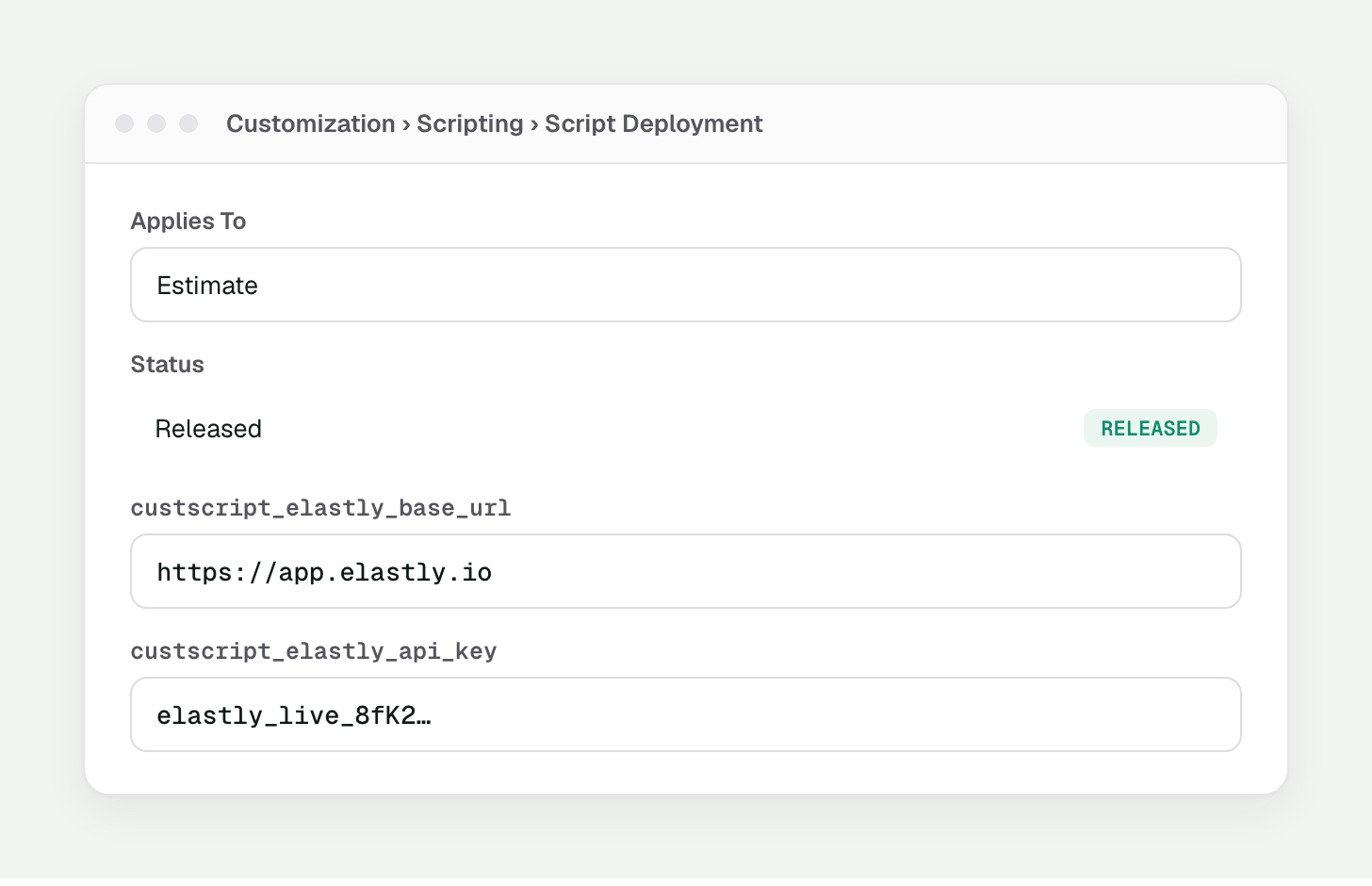
A deployment per record type. Status Released, with the base URL and API key parameters set.
Test it
Open a new Estimate (or your account’s renamed equivalent), choose a customer, and add an item: the Elastly Rate column should populate with Elastly’s recommendation within a moment. The native rate stays exactly as NetSuite set it. Elastly only advises.If the Elastly Rate doesn't appear, work through this in order
If the Elastly Rate doesn't appear, work through this in order
- Open the browser console (F12) before you test. This is a Client Script, so it runs in the browser. A load-time error (bad upload, corrupted file) shows up here and nowhere else. Nothing here means the script loaded fine and the problem is further down.
- Check the Script Deployment’s Execution Log. An empty log plus a price never appearing means the script’s early checks are failing silently, most often the parameter IDs (see the warning above) or parameter values left blank on this specific deployment.
- Confirm the parameter IDs are exact:
custscript_elastly_base_urlandcustscript_elastly_api_keyon the script record (not doubled), each with a real value on the deployment you’re testing. - Confirm the deployment Audience includes your test user’s role. Released status doesn’t matter if the tester isn’t in the Audience list.
- Confirm Field Changed Function and Post Sourcing Function are checked on the script record, matching the table above.
- Isolate Elastly’s script from client scripts in general. Does any other client script you run still work on this record? If yes, the problem is scoped to Elastly’s script. If nothing runs at all, something account- or role-wide is blocking client scripts, a bigger issue than this integration.
- Check the base URL and key. The base URL should have no trailing slash, and the API key should not be revoked (a revoked key returns 401, visible in the Execution Log as an error, not silence).