

Setup takes about five minutes. You need to be able to reach WooCommerce settings on the store.
Before you start: WooCommerce has no cost field
Elastly reads cost from a Cost of Goods plugin. It looks for these product meta keys, in this order, and takes the first one it finds:
If you already keep cost somewhere else, such as a custom field, you don’t need a plugin: map that
field to Cost on the connector’s Field mapping page after you connect.
If a whole catalog syncs without a single cost, Elastly tells you so on the connector page rather than
leaving you to wonder why nothing is priced.
Generate a REST API key
1
Open the REST API settings
In your WordPress admin go to WooCommerce → Settings → Advanced → REST API and press Add
key. Describe it as
Elastly and set the user to an administrator.2
Choose the permission level
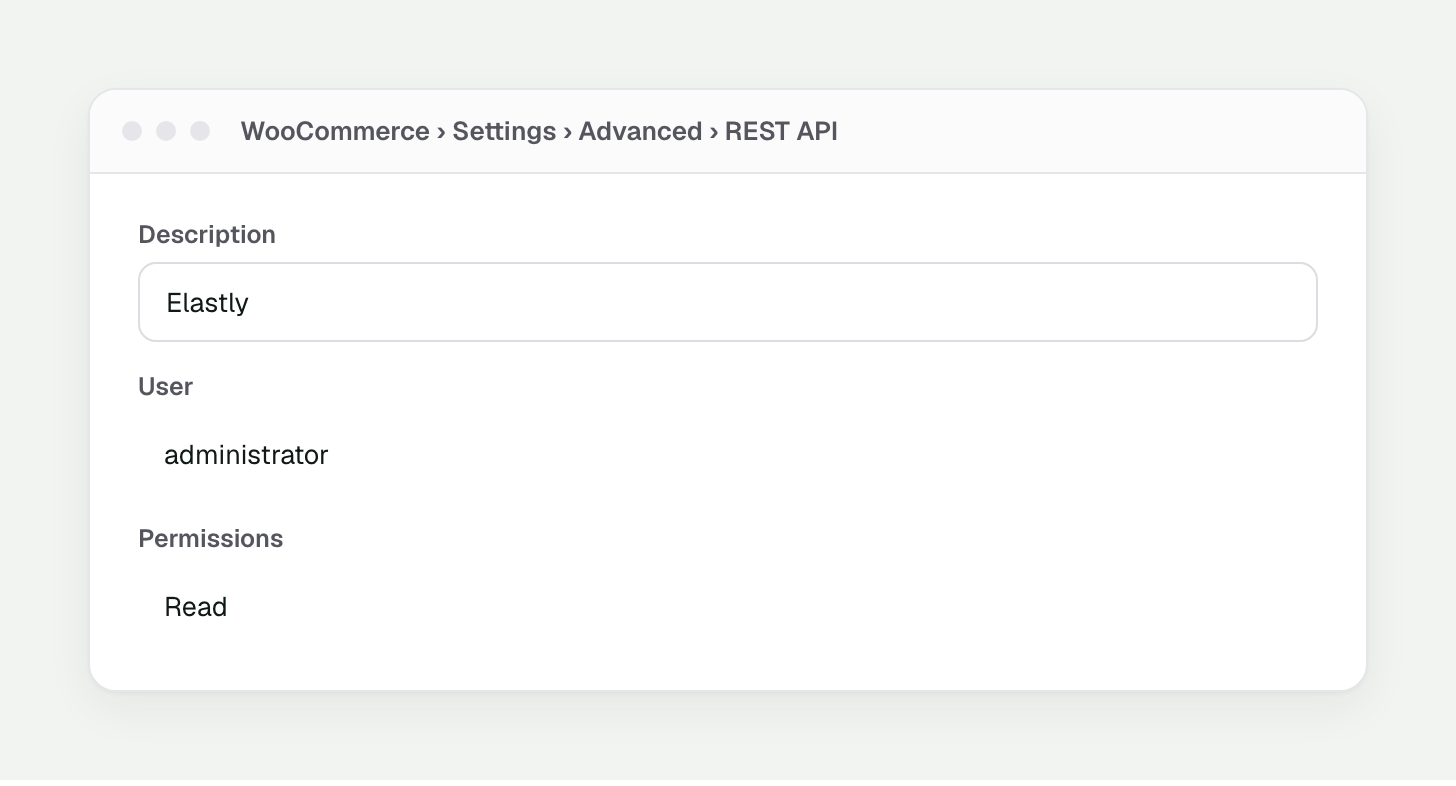
Add key in the REST API settings. Read is enough; Read/Write adds price write-back.
3
Save, and copy both values
Press Generate API key. WooCommerce shows a consumer key (
ck_...) and a consumer
secret (cs_...).Connect
1
Open Integrations
In Elastly, open Integrations and press Connect WooCommerce.
2
Paste the three values
Enter your store URL (for example
https://mystore.com), the consumer key, and the
consumer secret. Elastly checks them against your store immediately, so a typo fails here
rather than silently later.Your store must be reachable over HTTPS. WooCommerce sends the key on every request, so
Elastly will not connect over plain HTTP.3
Map your fields
Elastly takes you to the Field mapping page with sensible defaults already filled in from your
store. If your cost lives in a custom field, map it here. See Field mapping.
What Elastly reads
- Products and variations. A simple product is one SKU. A variable product becomes one SKU per variation, each with its own price and stock. A variation with no price of its own inherits the product’s price.
- Cost. From a Cost of Goods meta key, or any field you map yourself. This is your margin basis.
- Stock. On-hand quantity per SKU, used by stock-aware strategies.
- Customers. Name, email, and role. These seed per-segment pricing.
- Orders. Realized, line-level sales. This is the outcome the learning loop trains on.
Products with no SKU
WooCommerce doesn’t force you to set a SKU. If a product or variation has none, Elastly keys it on its WooCommerce product and variation IDs instead. It still syncs, and its sales still reach the learning loop. You don’t have to backfill SKUs to use Elastly.Which orders count as a sale
Elastly only learns from orders that actually completed, so by default that means orders in the Completed status. Cancelled, refunded, failed, and pending orders are ignored, and a refund never teaches the engine that a price won.If your orders never reach Completed. Plenty of stores leave paid orders sitting in
Processing and never mark them Completed. If that’s you, Elastly would see no sales at all. Add
processing to the statuses under the connector’s Sync settings and your sales will start
feeding price learning.How the sync runs
- On a schedule, unattended. Set the cadence and direction under the connector’s Sync settings. You can pause auto-sync whenever you want.
- Incremental for products and orders. After the first full pull, each run only fetches records that changed since the last watermark.
- Customers are always a full pull. The WooCommerce REST API offers no date filter on customers, so Elastly re-reads the customer list each time rather than pretending it can do less.
- Times are read in GMT. WooCommerce reports order dates in both your store’s local timezone and GMT. Elastly always reads the GMT value, so a sale is stamped at the moment it actually happened no matter where your store is set.
Verify permissions
If the key is under-scoped, WooCommerce quietly returns nothing for that record type, and the sync looks like it simply found no customers or no orders. Open Diagnostics on the connector page and press Check permissions. Elastly checks the key against your store and flags anything missing. It runs the same check after every sync.Price write-back
Write-back is off until you turn it on, so Elastly is read-only by default. When you enable it, an approved price publishes straight to the SKU in WooCommerce: the variation price for a variable product, or the product price for a simple one. Elastly sets the price and changes nothing else on the product.- Turn it on by setting the connector’s direction to include out under Sync settings.
- It needs a Read/Write key. If you generated a Read key, create a new one and reconnect.
- Every price is yours to approve first. Elastly never publishes a price you haven’t signed off on.