

Setup is done once by a store owner, or by staff with app permissions, and takes about five minutes.
What you’ll need
- App development permissions on your store. You reach the Dev Dashboard from your Shopify admin: click your store name in the top right, then Dev Dashboard.
- Your store domain, the permanent
your-store.myshopify.comaddress. It stays the same even if your storefront runs on a custom domain, because Shopify’s API always uses it. You’ll find it under Settings → Domains.
Create the app
In the Dev Dashboard, open Apps, click Create app, choose Start from Dev Dashboard, name it something your team will recognize such as “Elastly”, and click Create.This is not an App Store listing. You are not publishing anything. This app is private to your
store, it never appears in the Shopify App Store, and it needs no review. Leave the distribution
settings alone.
Request the access it needs
Open the Versions tab, set your app URL tohttps://app.elastly.io, and set the scopes to
exactly these five. Nothing more, nothing less. Shopify restricts apps that ask for data they don’t
use.
If Shopify asks for a redirect URL, set it to
https://app.elastly.io. This flow never redirects
your browser, so Elastly does not use that URL, but Shopify’s app configuration expects a value.
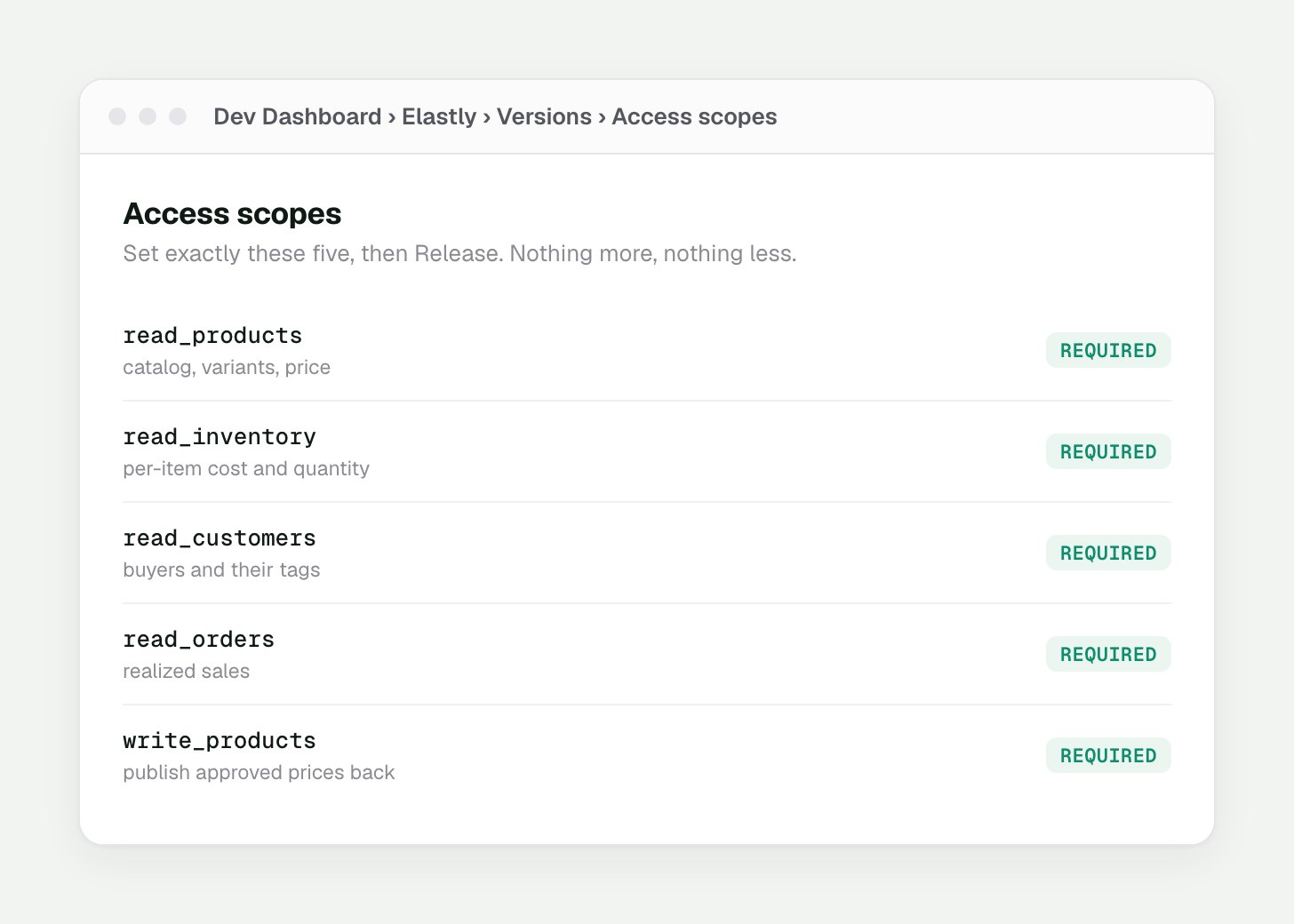
Set exactly these five scopes on the Versions tab, then Release.
Install it on your store
Go to the app’s Home tab, scroll down, and click Install app. Pick your store, then click Install.Copy the credentials
Open the app’s Settings tab and copy its Client ID and Client secret. Elastly encrypts both and uses them to request a fresh access token from Shopify whenever it syncs.Connect
1
Open Integrations
In Elastly, open Integrations and press Connect Shopify.
2
Paste the three values
Enter your store domain, client ID, and client secret. Elastly checks them against Shopify
straight away, so a typo fails here rather than silently later.
3
Map your fields
Elastly takes you to the Field mapping page, with sensible defaults already filled in from
your store. Review them, adjust anything that’s wrong, and save. See
Field mapping.
There is no approval screen and no redirect. You granted the access when you installed your own
app, so Elastly requests a token directly. Tokens last 24 hours and Elastly renews them for you.
If you uninstall the app
Elastly subscribes to Shopify’s app/uninstalled notification when you connect, so it knows the moment you remove the app from your store. The connection is marked disconnected, and Elastly stops trying to sync. Your synced data stays in Elastly until you reset the workspace, so reinstalling and reconnecting picks up where you left off.What Elastly reads
Elastly maps Shopify’s fields onto its canonical schema. The defaults below fit a standard store. Anything custom you keep in metafields can be mapped too.- Products and variants. Title, vendor (used as the brand), product type (used as the category), and each variant’s price and compare-at price. The variant is the priced unit.
- Cost.
InventoryItem.unitCostper variant, which is your margin basis. If you keep cost in a metafield instead, map it and Elastly reads it from there. - Inventory. On-hand quantity per variant, used by stock-aware strategies.
- Customers. Display name and tags. Tags seed per-segment pricing, so tier-based rules work from the first sync.
- Orders. Realized, line-level sales, dated by when the order was processed. That date is the signal the learning loop uses to tune margins.
Elastly keys on the variant id, not the SKU. A Shopify SKU is free text and is often blank or
duplicated, so by default
sku maps from variant.id. If you price on your own SKU, point the
mapping at it on the Field mapping page.Cost is the gate. A variant with no cost has no margin basis, so Elastly leaves it unpriced
until a later sync brings a cost in. Set cost on your variants in Shopify, or map a cost metafield,
before you expect recommendations.
How the sync runs
- On a schedule, unattended. Set the cadence and direction under the connector’s Sync settings. You can pause auto-sync whenever you want.
- Incremental. After the first full pull, each run only fetches records that changed since the last watermark.
- Environment-aware. Development stores are detected and labelled Sandbox. Live stores show Production.
Verify permissions
If a scope is missing, Shopify quietly returns nothing for that record type, and the sync looks like it simply found no customers or no orders. Open Diagnostics on the connector page and press Check permissions. Elastly reads the granted scopes straight from Shopify and flags anything missing. It runs the same check after every sync. If a scope shows Missing, add it to your app’s Versions tab in the Dev Dashboard, press Release, then reconnect the store in Elastly.Price write-back
Write-back is off until you turn it on, so Elastly is read-only by default. When you enable it, an approved price publishes straight to the variant in Shopify. Elastly sets the variant price and touches nothing else in your store.- Turn it on by setting the connector’s direction to include out under Sync settings. It stays paused until you do.
- It needs the write_products access you granted when you created the app. If you left that scope out, add it in the Dev Dashboard, release the version, and reconnect.
- Every price is yours to approve first. Elastly never publishes a price you haven’t signed off on.